Ensure that no one is using a SPACE GASS licence attached to the Titan server about to be re-registered.
Save the SPACE GASS registration package (called SGRegistration.pkg) you received by email into a temporary folder or onto your desktop.
Run the Titan Administration tool via the Start button => All Programs => Titan Licence Manager => Administration tool and then in the following form, click the "Register" button.
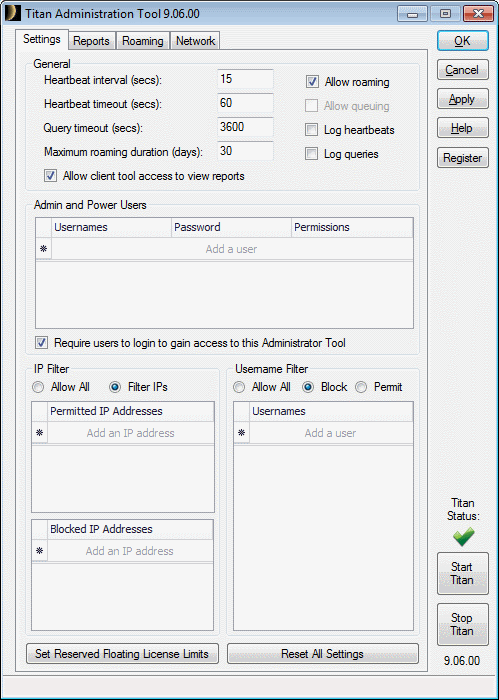
In the following form, click the "Re-Register" button, browse to the folder you saved the registration package into in step 2 above and then click Ok.
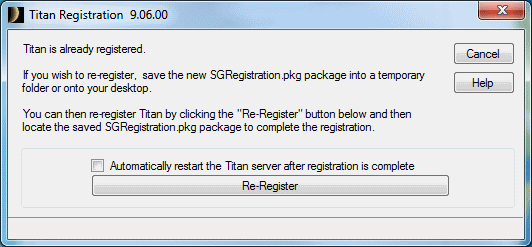
Your Titan server will then be re-registered and you will be notified as follows.

You should then re-start the Titan licence manager by clicking the "Start Titan" button near the bottom-right corner of the Titan Administration tool. When the green tick appears, you can close the tool.
The next time you run SPACE GASS it will recognise the registration changes.
If you don't have the latest version of SPACE GASS then, provided you have a current maintenance contract, you should upgrade via Upgrading SPACE GASS. This is important because if your software is out of date you could be missing out on bug fixes, enhancements and design code changes. If you have just purchased a new SPACE GASS module then it is doubly important because your out of date software may not even include the module you just purchased. You can check which is the latest version by going to www.spacegass.com, clicking Downloads => Commercial Version and then noting the version number next to "Upgrade to ...".