Command Palette
SPACE GASS contains hundreds of commands spread across menus, submenus, toolbars, right-click context menus and keyboard shortcuts. Rather than hunting through the interface for the tool you need, you can use the Command Palette to find and run any command by simply typing part of its name.
Opening the Command Palette
Press the K key while the graphics window has focus to open the Command Palette. A search box appears in the centre of the screen. Note that the K key won't open the palette if you are typing in a text field or working in another window — if nothing happens, click in the graphics window first and then press K.
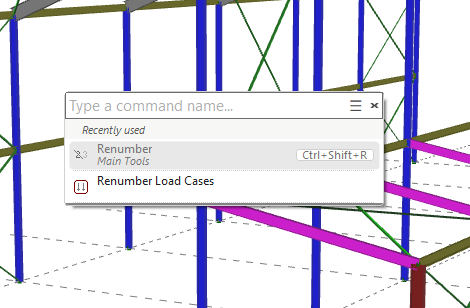
Finding and running a command
Start typing any part of the name of the command you want. As you type, a list of matching commands appears below the search box. The match doesn't have to be from the start of the name — for example, typing "numb" will find the Renumber command. Each item in the list shows the command's icon, its name, the menu group it belongs to, and its keyboard shortcut (if it has one).
Highlight the command you want using the mouse or the up/down arrow keys and then click it or press Enter to run it.
For example, to renumber the nodes in your model, press K and type "renumber" — there is no need to remember which menu the command lives in.
Browsing the full command list
If you are not sure of a command's name, click the list button (≡) to the right of the search box. This displays a complete list of all available commands, grouped by menu. You can scroll through the list or start typing to filter it.
Closing the Command Palette
Press Esc or click the × button to close the palette without running a command.
 You don't need to type a command's full name — a few characters from anywhere in the name is usually enough. The keyboard shortcuts displayed alongside commands are also a handy way of learning the shortcuts for the tools you use most often.