IDEA StatiCa Checkbot Link
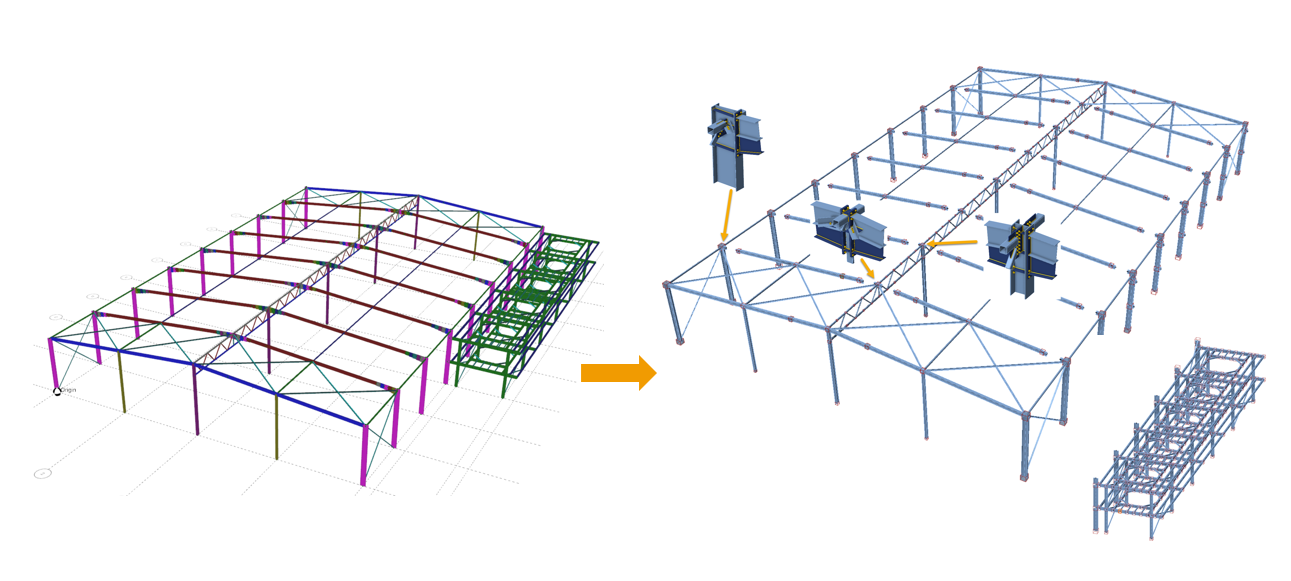
IDEA StatiCa Checkbot is a steel connection design and management tool provided by IDEA StatiCa that allows import and syncing of SPACE GASS analysis model result data to enable the detailed connection and member design inside of IDEA StatiCa.
The link provides a persistent, managed link between the two applications so that design changes can be easily synchronized without losing your connection detailing work.
Key capabilities include:
- Management of steel connection designs and reporting across your structure.
- Import and syncing of model and result data sourced directly from SPACE GASS.
- Backup and export of Checkbot data.
Pre-requisites
To enable access of the link with IDEA StatiCa Checkbot, you will need to have a version of IDEA StatiCa installed on your computer that is compatible with SPACE GASS. For more information on IDEA StatiCa, please visit their website www.ideastatica.com.
Note: Without a compatible version of IDEA StatiCa installed on your computer the menu items will be grey and not selectable.
Installation
The IDEA StatiCa Checkbot Link is installed along with SPACE GASS. You do not need to run any further installations.
Versioning
We endeavor to update the link to always enable the latest version of IDEA StatiCa with the latest available version of SPACE GASS. Please contact support if you are having problems or your version of IDEA StatiCa is not supported.
Typical Workflow
The standard workflow when using the Checkbot link from SPACE GASS for connection design follows these high-level steps:
- Complete analysis and member design in SPACE GASS (including non-linear static and/or buckling analysis, and steel member checks).
- Start Checkbot and create a project via File > Export > IDEA StatiCa > Checkbot Link.
- Import a selection of SPACE GASS nodes and members directly into the Checkbot application (includes analysis results).
- Adjust and merge imported model in Checkbot to match real-world connection design geometry.
- Detail, Analyze and Design connections in IDEA StatiCa.
- Update the SPACE GASS Model as required and re-run analysis and design.
- Synchronize Checkbot data if the SPACE GASS model is updated.
- Save and export Checkbot data as required.
Starting the Checkbot Link
The link can be accessed via File > Export > IDEA StatiCa > Checkbot Link. It can also be accessed from the Steel Connection options within SPACE GASS.
After clicking, this will start the Checkbot application within the SPACE GASS process and create a persistent link between the two programs.
On Checkbot application start, if no prior Checkbot project has been created or saved in the current SPACE GASS job file, you will be prompted to create a new Checkbot project. Here you can select the default design code to design connections in your project.
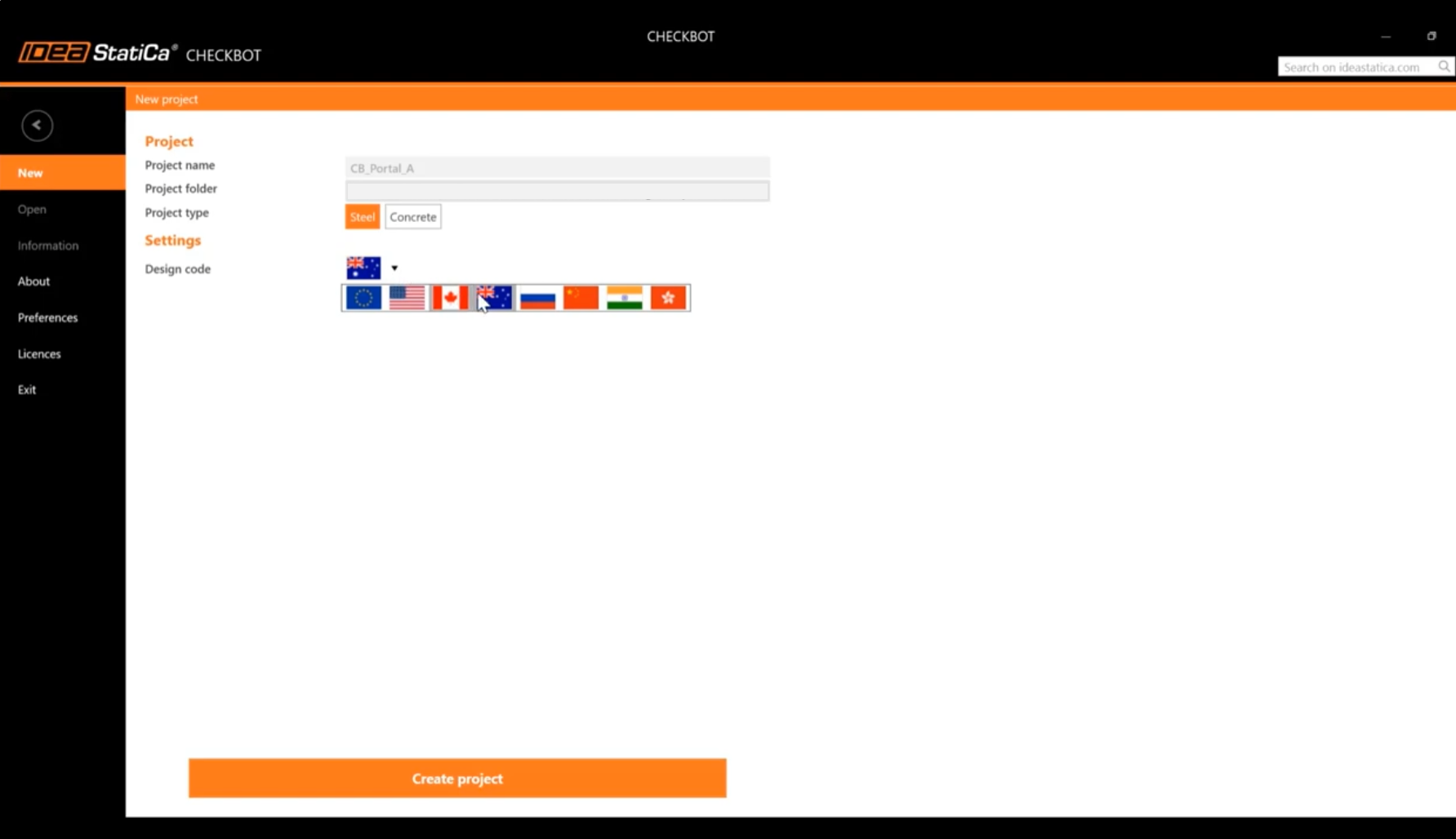
Note: By default, all new projects are saved into the SPACE GASS job file. See below for options to save Checkbot data remotely.
If a prior Checkbot model had been created for the current SPACE GASS job, Checkbot will be opened and loaded with the saved structure for you to continue working.
Selecting the IDEA StatiCa Version
When the link starts, we automatically try and find the latest version of IDEA StatiCa that has been whitelisted for use with SPACE GASS available on your computer.
If you need to select a specific version of IDEA StatiCa, then there are options available. Please contact support and we will gladly help you.
Saving/Opening Checkbot Data Remotely
To save the Checkbot data remotely (as a separate, persistent Checkbot folder that exists independently of the SPACE GASS file) hold Shift when selecting 'IDEA StatiCa Checkbot', then choose 'Make New Folder' or select an existing Checkbot folder.
This method is sometimes recommended when dealing with big models where it can be required to split one SPACE GASS job structure into multiple Checkbot projects – often required to handle performance and file size issues which can sometimes arise.
Some other advantages are listed below:
- Backups can be made at any time by copying the Checkbot folder.
- File size of the SPACE GASS model is not inflated by connection results.
- Multiple Checkbot folders can be used for different zones of the structure.
- If there are issues with a Checkbot folder, start again from a backup folder.
Exporting Nodes and Members
Once Checkbot is open, a live link is created and active between both SPACE GASS and Checkbot.
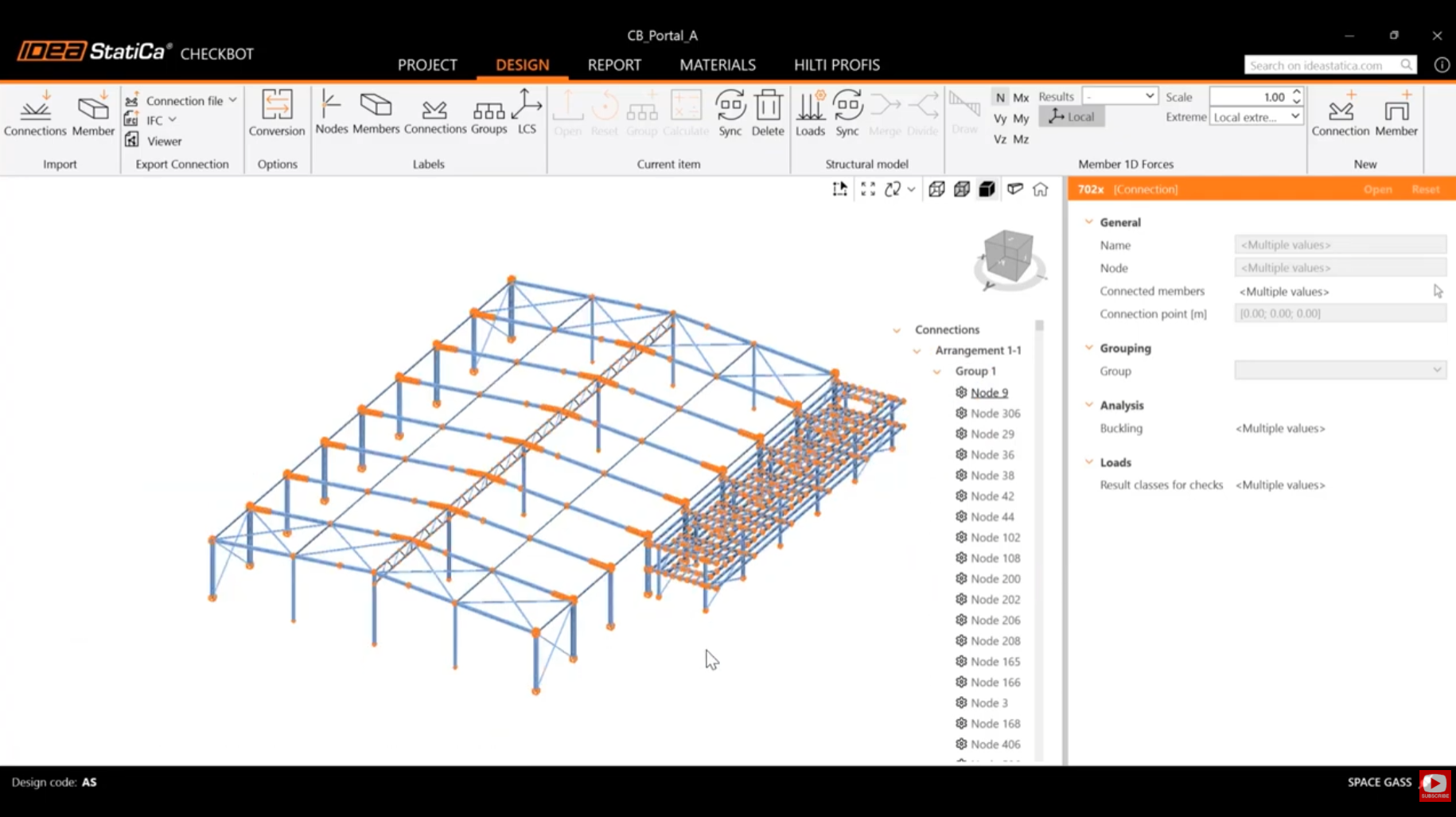
Navigate to the Checkbot window and select the Connections button under the Import panel section in Checkbot. Once clicked, you will be prompted to provide a selection in SPACE GASS for import into Checkbot.
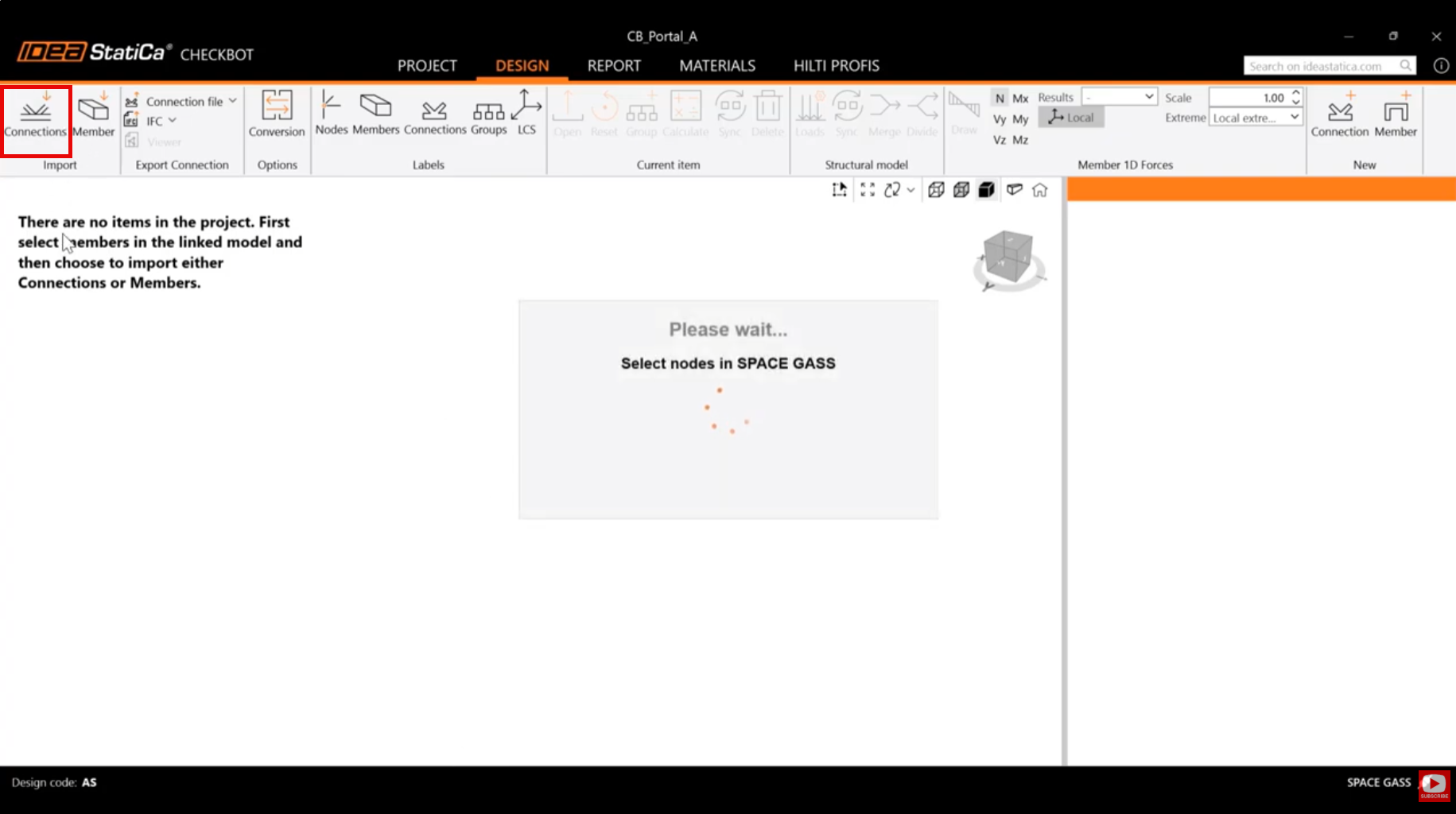
Select the Nodes and/or Members in SPACE GASS, and click OK.
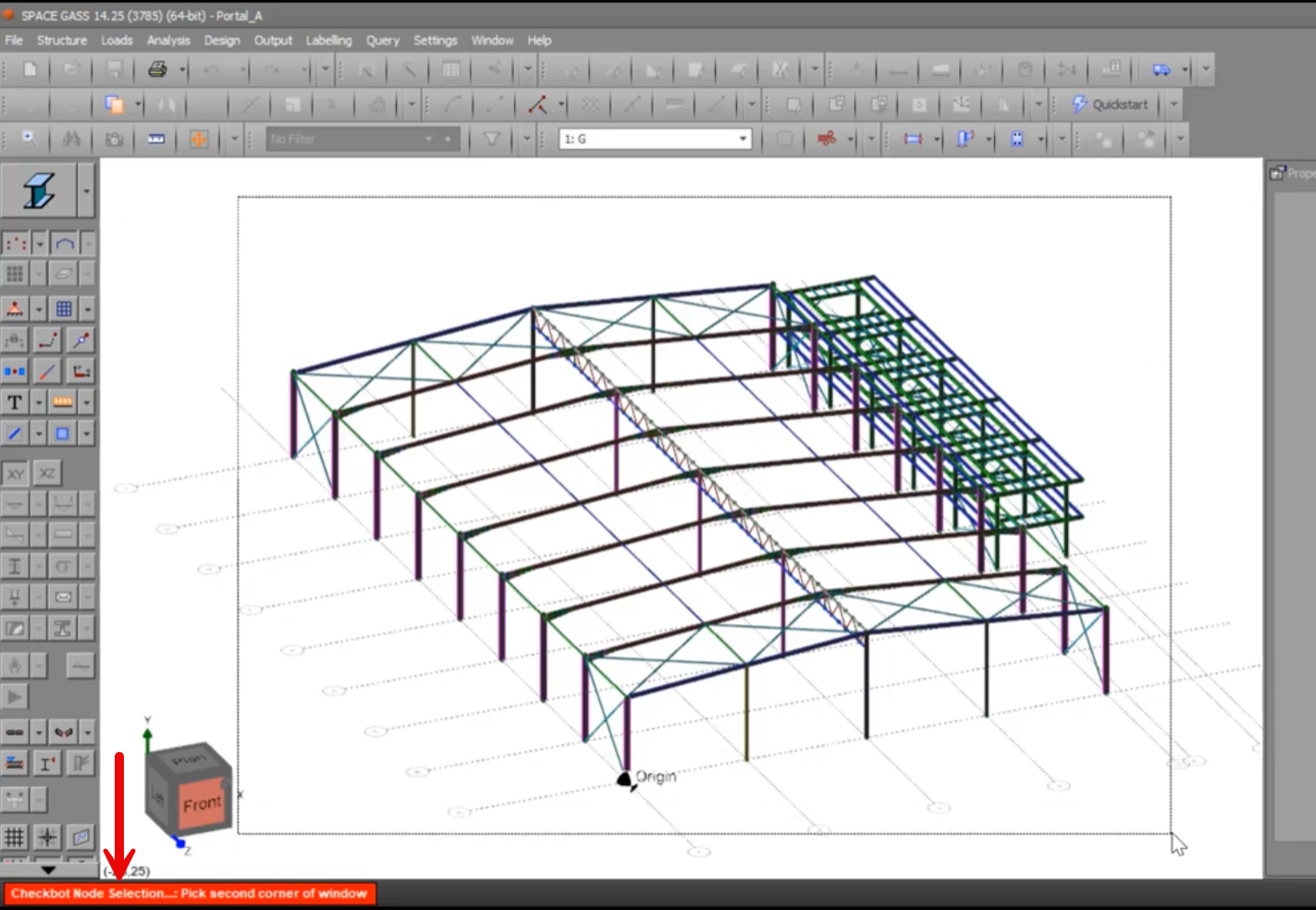
The selected model and results will then be directly transferred into Checkbot. Connections should automatically be generated in Checkbot as a starting point.
Results export
When importing members into Checkbot all currently analyzed load case and combination results are imported automatically into Checkbot. These can be viewed and compared using the available member 1D force view settings in Checkbot.
Note: To improve data transfer efficiency and speed, it is recommended that only load combinations that should be used for Connection Design are analyzed prior to calling Import.
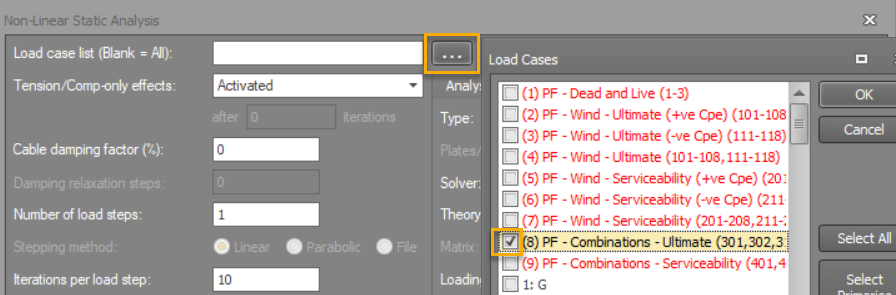
Imported Load Cases can be additionally viewed and managed in Checkbot through the “Loads” button.
Data Transfer and Modelling Considerations
Some considerations and those are very relevant for SPACE GASS to IDEA Checkbot model interoperability are listed in the sections below.
Merging Analytical Members
As SPACE GASS models members as FEA element (Raw Analytical Model), it is likely that some members will require merging to mimic real physical conditions (i.e. continuous member through connections). This can be done using the “Merge” command in Checkbot. First select the first member to merge, then click Merge to select available members which can be merged.
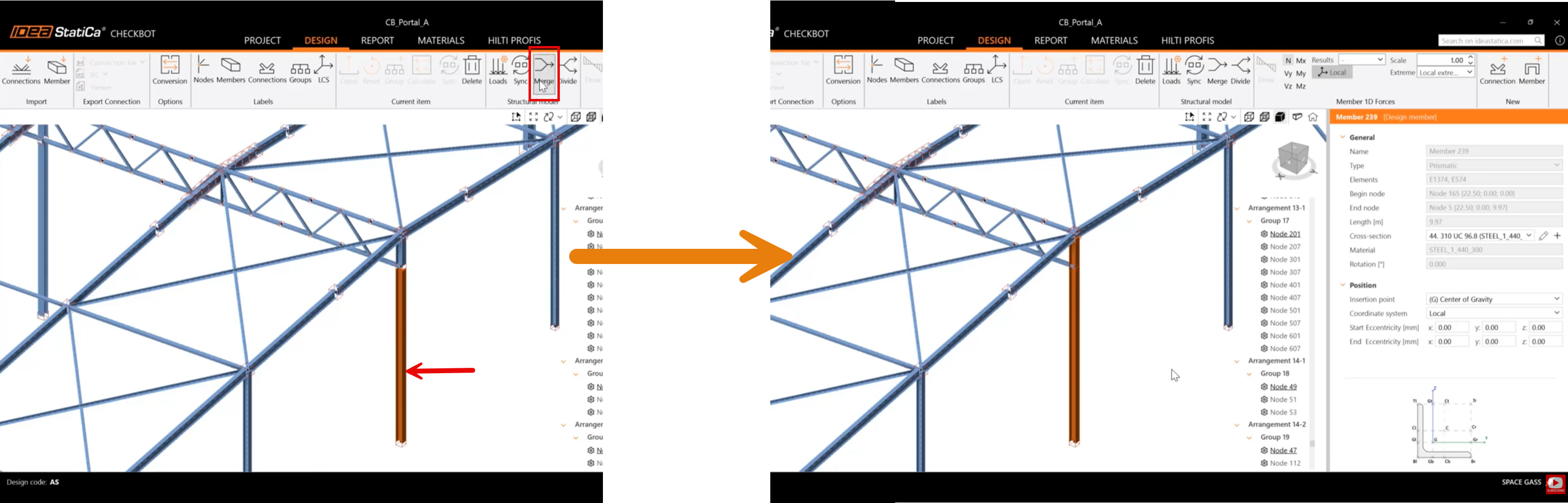
Merging Members into Single Connection
It is sometimes desirable to merge members from multiple nearby nodes into a single node, so that all members near a connection can be included in the one connection model. This is particularly useful for truss apex nodes where web members from adjacent panels need to be combined.
See: Add or merge nodes of connections and members in Checkbot
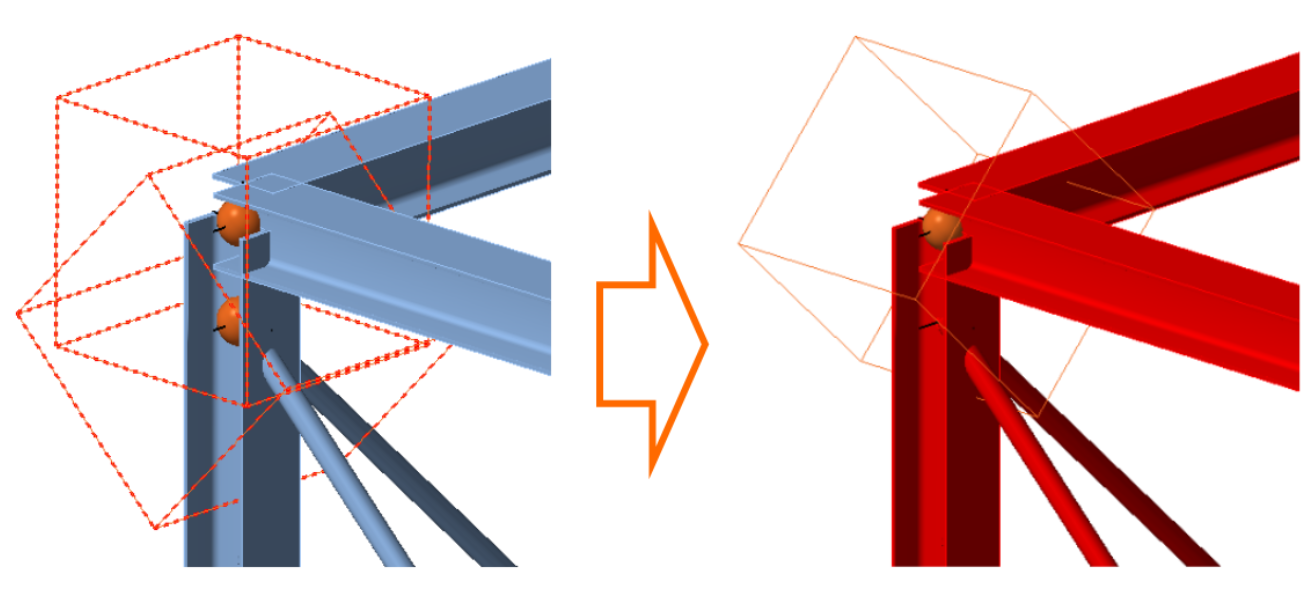
Offsets
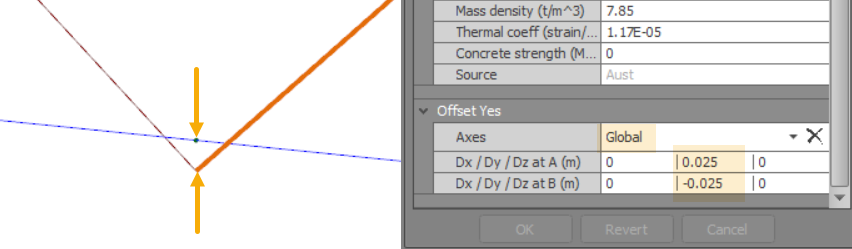
Offsets are used to represent the physical positioning of members at connections and are particularly relevant for truss nodes where a practical gap between web members is required for welding.
As in SPACE GASS, offsets influence analysis results (they are not cosmetic only) it is recommended to include offsets in the SPACE GASS model – not move the members in Checkbot. Both the analysis results and the physical offsets will then flow through to the connection models, ensuring consistency between the frame and connection design.
Offsets can instead be created directly in Checkbot, but the analysis results will not reflect those offsets. They will also need to be re-entered after each export or sync from SPACE GASS.
Haunch Offsets
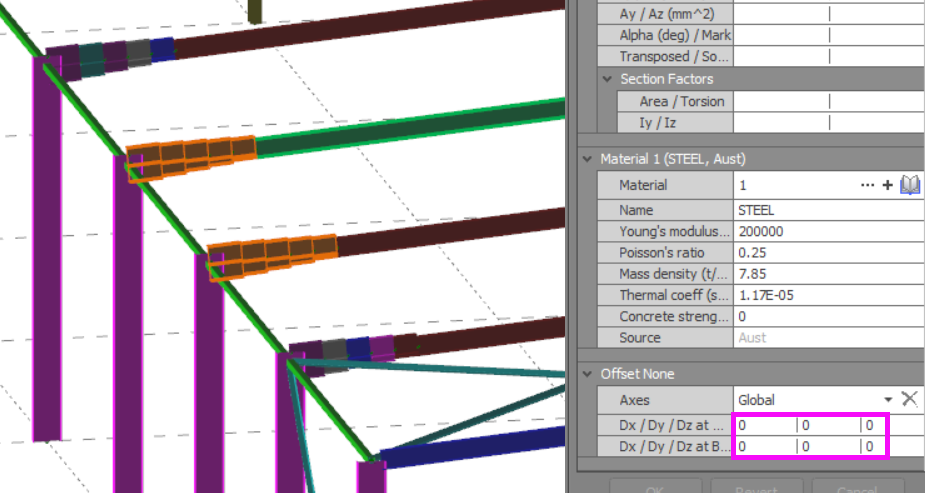
For haunched rafter members, it is generally better to remove local vertical offsets of the haunched member segments within SPACE GASS.
This approach:
- Eliminates the need to manually adjust offsets in Checkbot.
- Provides more accurate load effects at the haunched connection to the column.
The only disadvantage is that the rafter appearance in the SPACE GASS model will not reflect the haunch geometry. In practice, the rafter top flange will remain in line with the unhaunched rafter flange.
Using Checkbot for Connection Design
The Checkbot application is continuously improved and updated and is outside the scope here to provide detailed information on its functionality. Please refer to IDEA StatiCa documentation on Checkbot for its features. Some good references are listed below:
Data Synchronisation
If the SPACE GASS model is updated, for example, if loading or section sizes change — the Checkbot models can be synchronized to reflect the new data:
- Re-run analysis in SPACE GASS.
- Open Checkbot and use the Sync function to update the connection data.
- Connection details (geometry and fastener/weld arrangements) are retained after synchronization.
- Recalculate affected connections, groups, or the entire list to verify the updated design.
Checkbot data synchronization has several limitations - such as not retaining any model changes that are made in Checkbot from the original export on sync. IDEA StatiCa should hopefully improve this in the future.
Note: Before running synchronization, we recommend that the Checkbot data is backed up using one of the back-up methods below.
Managing Checkbot Data
Please see below for additional information and options for saving and exporting Checkbot data from SPACE GASS.
Backing Up Checkbot Data
Creation of backups requires the closure of Checkbot. On closure, SPACE GASS will zip and save the Checkbot data. Then on saving of the SG file, the Checkbot data is also saved.
You can also create manual backups using the Exporting Checkbot Data method below.
Deleting Checkbot Data
If the SPACE GASS job structure has changed significantly from the initial design, and Checkbot file creation cannot be undone, you may want to completely remove the Checkbot data and start from scratch with the new SPACE GASS model.
You can purge the Checkbot Data by going to File > Export > IDEA StatiCa > Clean-up IDEA StatiCa Checkbot data.
Exporting Checkbot Data
If you would like to export the Checkbot data to send to other parties without the attached SPACE GASS file you can use the currently available shortcut.
To export embedded Checkbot Data hold Shift when clicking 'Clean-up Checkbot data' and select the location to save the Checkbot data folder.
SPACE GASS Keyboard Shortcuts for IDEA StatiCa Checkbot Link
- Hold Shift when launching Checkbot — opens in standalone mode (browse for a Checkbot data folder). Recommended for large models and those with many load combinations.
- Hold Shift when clicking 'Clean-up Checkbot data' – allows export of Checkbot data folder to an external location.
- Hold Shift + Ctrl when launching Checkbot — embeds a standalone folder back into the SPACE GASS file.
Strategies to Improve Performance
For large models, reducing the volume of data passed to Checkbot improves processing speed and reduces complexity:
- Select only the load combinations required for connection design — typically strength (ULS) combinations only. It is best to limit these in SPACE GASS so they do not need to be deleted in Checkbot later.
- Use SPACE GASS Filters to exclude nodes that are not required in Checkbot, so unnecessary connections are not imported.
- For large models, use two or more Checkbot folders for different portions or zones of the structure (e.g. Zone 1 and Zone 2).
- Group similar connection types into the same Checkbot model using design groups.
Disclaimer
IDEA StatiCa is a third-party application developed and maintained by IDEA StatiCa s.r.o. and distributed in Australia by Building Point Australia. SPACE GASS provides a data link to IDEA StatiCa as a convenience to users; however, SPACE GASS is not responsible for the functionality, accuracy, limitations or outputs of the IDEA StatiCa software. Users should refer to the official IDEA StatiCa documentation and Support Centre for guidance. Software features and interface may vary between versions.
Contributions
A primary part of the content for the IDEA StatiCa Checkbot page was kindly provided by Nick VanDerKreek of Building Point Australia.